Groups
Run the Groups module: public and private groups, members and leaders, the public Group Finder and every way to join, plus what members and leaders see in the portal.
All lessons 21 lessons, about 18 min
- 1
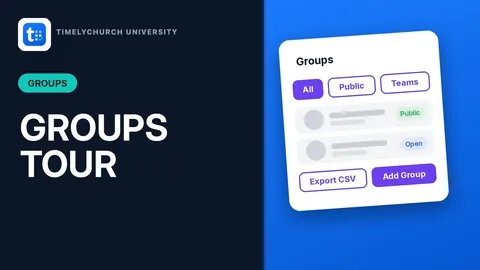 Tour the Groups ModulePublic groups, private groups, teams and classes all live on one page.
 - 2
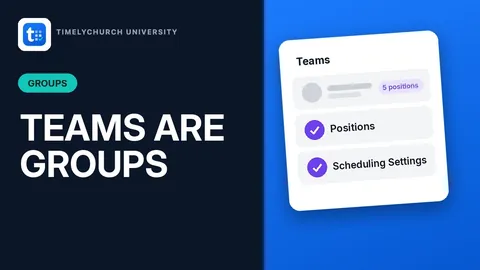 Teams Are Groups TooServing teams like Worship, Ushers and Sound & Tech live right inside your Groups, with positions and scheduling settings of their own.
 - 3
 Create a Public GroupAdd a new small group, Bible study or life group that shows up in your public Group Finder, so anyone can find it and join.
 - 4Create a Private GroupSome groups shouldn't be searchable: support groups, recovery groups, leadership circles.
- 5Set Up Your Group TypesGroup Types are your ministry categories, like Bible Study, Fellowship and Support Group.
- 6Edit a Group's Meeting Details and LocationWhen your group changes its meeting time, moves to a new room or goes online, here's exactly where to update it, including how much of your address the…
- 7Set How People Join a GroupOpen or closed, instant join or leader approval, a capacity with an automatic waitlist: this is where you decide exactly how someone gets into your group.
- 8Add a Leader or Co-Leader to a GroupGive someone the keys to run a group as leader or co-leader, without making them a church administrator.
- 9Add a Member to a GroupAdd someone from your directory straight into a group, with no sign-up form. They get a welcome email as soon as you add them.
- 10Invite Someone to a Group by EmailSomeone isn't in your church directory yet, or a team leader can't add them directly.
- 11Approve or Deny a Join RequestSomeone asked to join your group. Here's how to say yes or no, and what each answer does.
- 12Remove a Member from a GroupSomeone has moved on from a group. Here's how to take them off the roster without touching their place in your church directory.
- 13
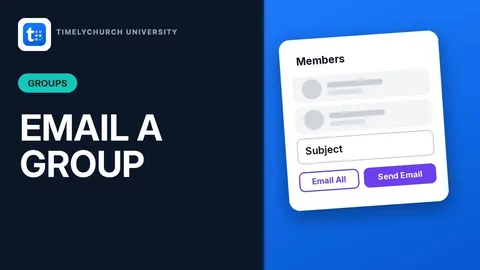 Email a GroupSend every member of a group an email straight from the group's page, with no separate contact list to build.
 - 14Share a Group's Sign-Up Link or QR CodePut a group's sign-up link in a text, on a slide, or as a QR code at your welcome table. Copy it, download it, and you're done.
- 15Delete and Restore a GroupWhen a group has run its course, delete it. It waits in Recently Deleted for 30 days in case you change your mind.
- 16Find a Group in the Public Group FinderAnyone can browse your church's groups from your website, no login required. Here's what that looks like, from filtering by day to opening a group's page.
- 17Join an Open Group from the Public SiteA brand-new visitor to your website can join an open group with one short form and no account.
- 18Request to Join a Group That Requires ApprovalSome groups welcome new members after a leader says yes.
- 19Join a Full Group's WaitlistWhen a group is full, a visitor isn't turned away. They land on its waitlist automatically and see their place in line.
- 20See Your Groups in the Member PortalEvery group, class and serving team a church member belongs to lives in one place inside their own portal, along with meeting times and RSVPs.
- 21Join a Group While Signed InAlready have a church portal login? Joining a group takes one click, with no forms to fill in, and the group shows up in My Groups right away.