Families
Manage a household from its own page and from the Families list, understand the Guardian, Pickup, Emergency and Notices permissions, and see the member side of family life in the portal.
All lessons 9 lessons, about 7 min
- 1
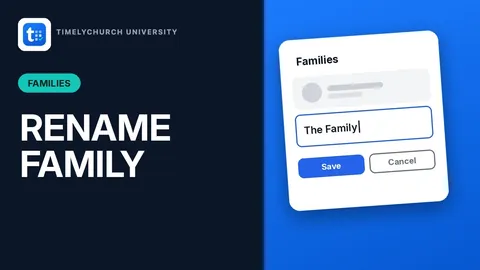 Rename a Family from the ListFix a typo or update a household's name right from the Families list. There's no need to open the full family page.
 - 2
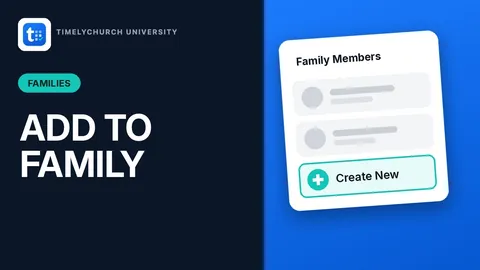 Add a New Person Directly to a FamilyAdding a brand-new baby, spouse or relative? Create their profile and link them to the household in one step, right from their family's page.
 - 3
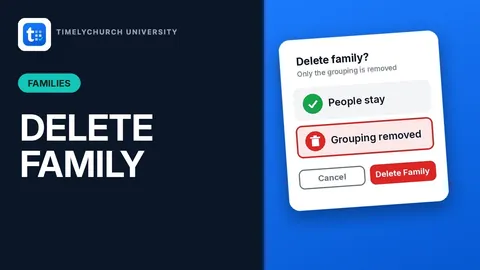 Delete a Family GroupingDeleting a family only removes the household grouping. Every person in it stays safe in your directory. Here's exactly what happens when you click Delete.
 - 4
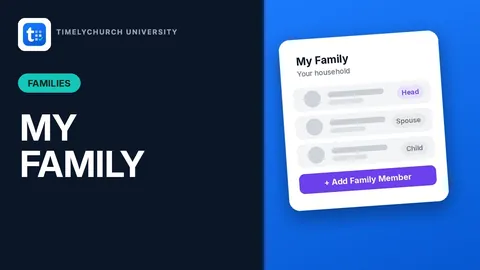 See Your Household on My FamilyEvery member gets a My Family page in the member portal. See your household, your address, and quick links to lessons and giving, all in one place.
 - 5
 Edit Your Household's Details
 - 6
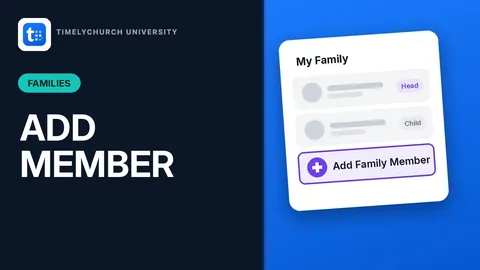 Add a Family Member from the PortalAdd a new baby, spouse or relative to your household yourself. The app checks for duplicates before anything is saved.
 - 7
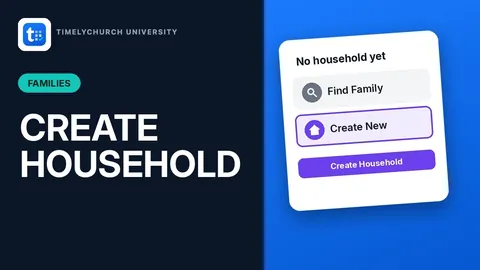 Create Your Own HouseholdNew to the church, or no household set up yet? Start your own family in two clicks. The name is filled in for you.
 - 8
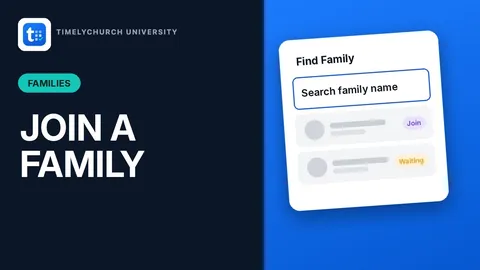 Find and Request to Join a FamilyAlready have family in the church? Search for their household and ask to join it. One click, nothing to fill out, no message to write.
 - 9
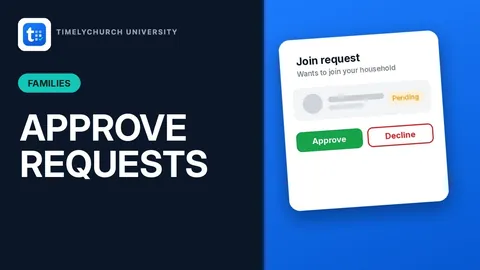 Approve or Decline a Join RequestSomeone asked to join your household? Approve it in one click, right from My Family. Declining works the same way, with no notes to write either way.