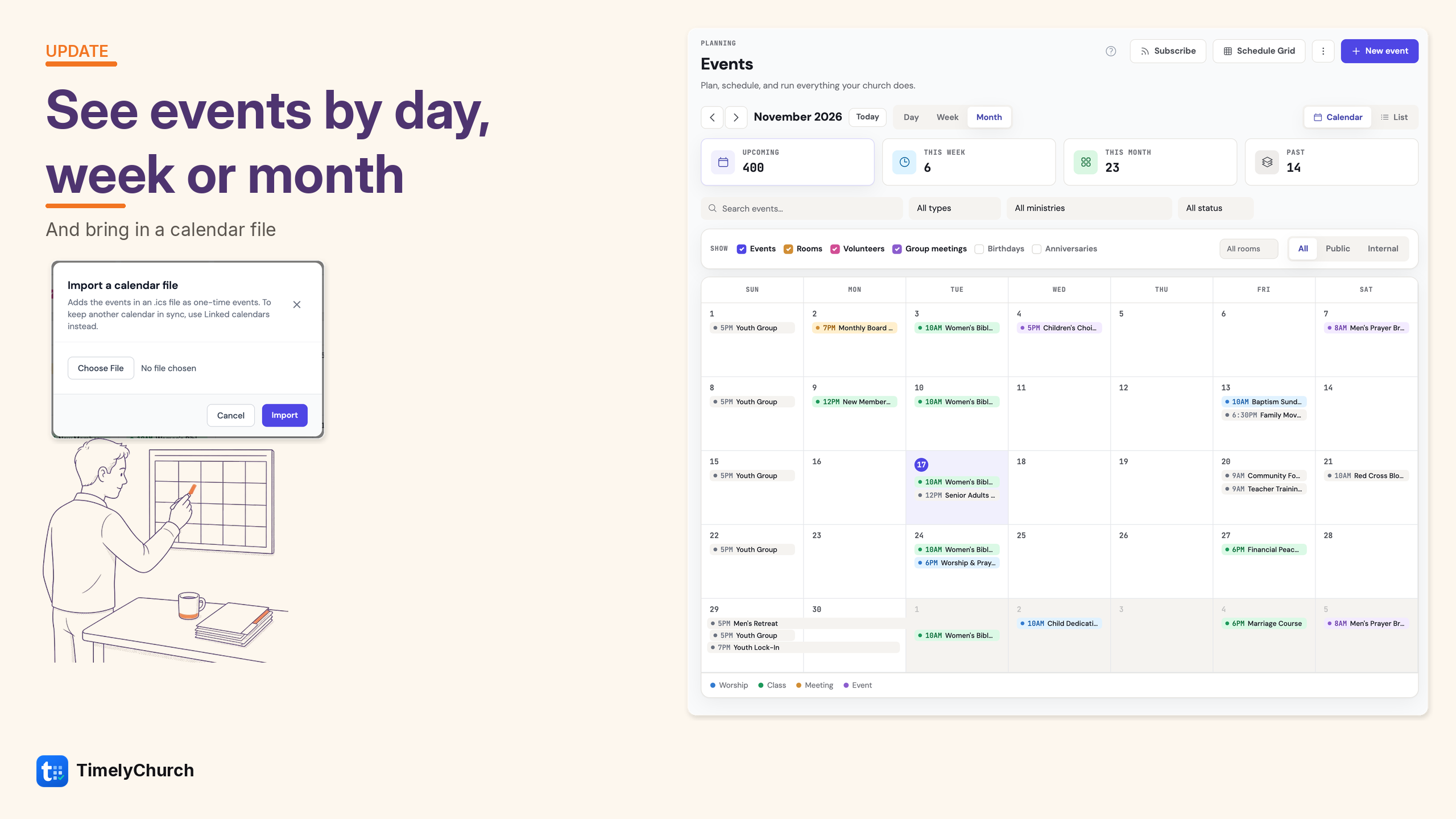
Events has a calendar with three views, and you can add the events from a calendar file in one step.
Day, Week and Month
Open Events. With Calendar selected at the top, you will see Day, Week and Month buttons next to Today.
- Month shows the whole month, so you can spot a double-booked Saturday.
- Week shows each day of the week by the hour. It helps when you are lining up a Sunday morning of services, classes and rehearsals.
- Day shows one day by the hour, which is handy on the day itself.
Use the arrows beside the date to move forward or back, and Today to jump back to today. Day and Week open on today when today falls inside the range you are looking at. TimelyChurch remembers the view you picked the next time you come back. On a phone the same three buttons are there.
Import an .ics file
If someone sends you their schedule as a calendar file, you can add it without typing each event again. Click More (the three dots) at the top of the Events page, choose Import .ics file, pick the file in the Import a calendar file window and click Import. The file can be up to 2 MB.
The events are added as one-time events, and a message tells you how many came in. If any could not be read, the message names them, so you know what to fix in the file. To keep another calendar up to date over time, use Linked calendars in the same menu.
You need permission to create events to import a file.
💬 Got an idea, or something bugging you? Share your feedback — it shapes what we build next.
We're here to help,
The TimelyChurch Team