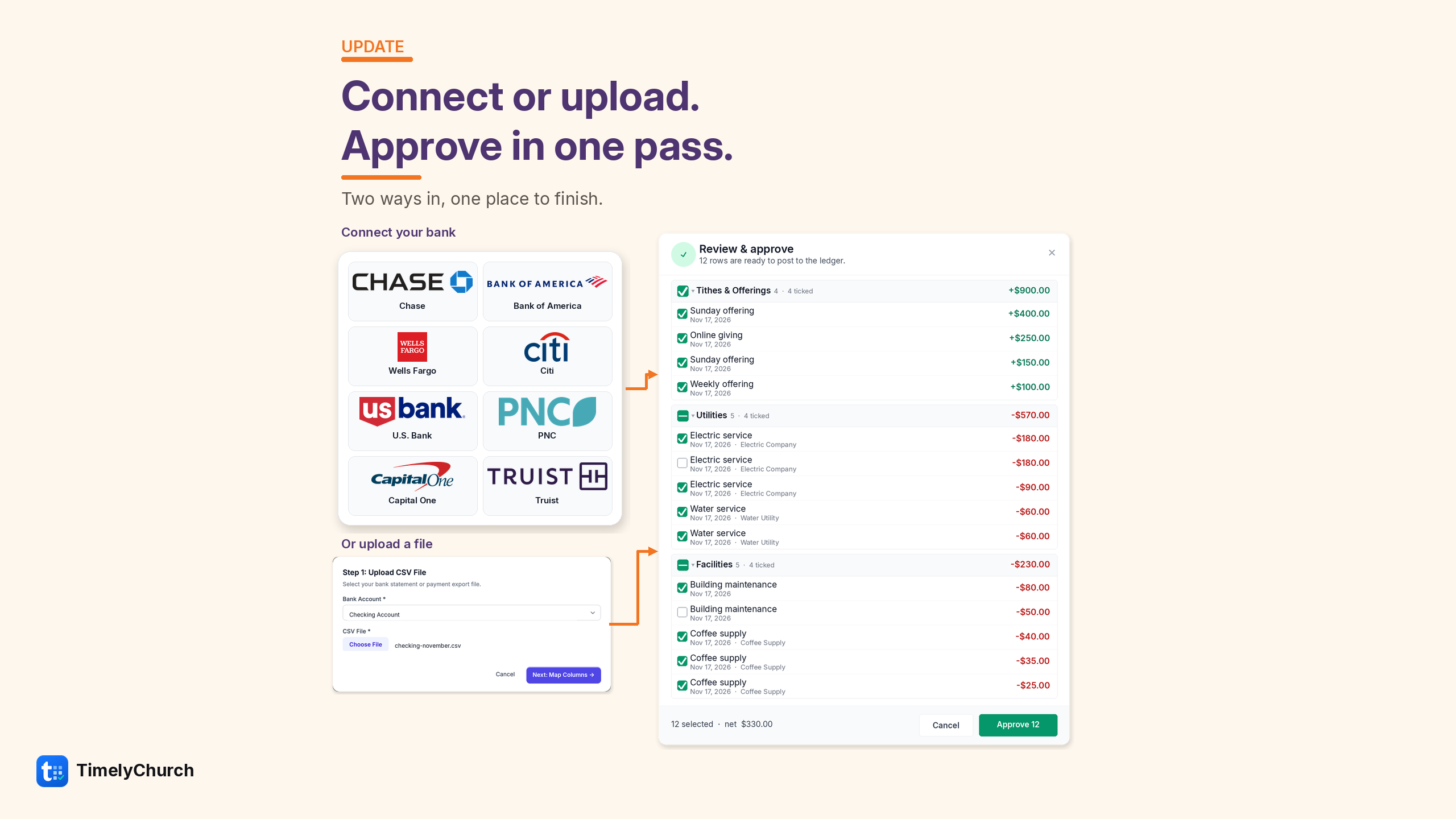
Your bank transactions can now reach TimelyChurch two ways. Connect the church's bank account and new transactions come in by themselves every day, or upload the file your bank gives you, as before. Both land in the same list, and Review & approve lets the treasurer post them together instead of one row at a time.
Connect your bank
Go to Finances, then Accounting, then Setup, then Chart of Accounts. Next to a bank account, click Connect bank. A secure window opens where you choose your bank, sign in to it and pick the account. Your bank password goes into that window, never into TimelyChurch.
When it is connected, the account shows Connected, its balance and when it last synced. New transactions come in every day, and Sync now checks right away. The first sync goes back to the account's opening date in TimelyChurch, up to six months. If you already uploaded files for that account, the connection starts the day after the last date in them, so those days are not brought in again.
Chart of Accounts is part of Full Accounting. If the button at the top of your Accounting dashboard says Simple Mode, open it and choose Full Accounting first. That changes only your own view, and you can switch back any time.
Disconnect stops the daily sync. The transactions already brought in stay.
Bank connection is for churches in the United States, depending on your plan (see Pricing). It is not available during a trial. To connect a bank you need permission to edit Accounting.
Or upload a file
On Transactions, open New Transaction and choose Import from CSV. Upload the CSV file from your bank's website.
Post them in one pass
When transactions are waiting, the Transactions list says how many need review and shows a green Review & approve button with a number on it. The number is how many can be posted right now.
Click the button and a window opens with the transactions grouped by category. TimelyChurch has already checked the ones it is sure about: lines that match a rule you set, lines whose description you have posted before, and lines you categorized yourself. A line that is only a close match stays unchecked, so you decide.
Each line shows its date, payee and amount. It also says when it will create a donation record or has a processing fee. A line that cannot be posted yet is grayed out, with the reason next to Cannot post yet:.
Uncheck anything you want to look at later. At the bottom you see how many lines are selected and their net amount. When it looks right, click Approve with the count on it. The lines you left unchecked stay in the list.
If you change your mind
After a batch posts, a banner at the top of the page tells you how many lines went to the ledger. Undo this batch is on that banner for 24 hours. Someone with the Delete permission for Accounting can use it.
A batch has a limit on how many lines it posts. If more are ready, the window says so, and you open Review & approve again to post the rest.
To post with Review & approve you need permission to create entries in Accounting.
💬 Got an idea, or something bugging you? Share your feedback — it shapes what we build next.
We're here to help,
The TimelyChurch Team