You finish the lyrics at home and close the laptop. At church, another volunteer opens the service and finds last week's ending. You both did your part. You prepared the new material, and they opened the material they had.
What was missing was an agreed handoff. The person receiving the files needs to know which service they belong to, what changed and what still needs checking on the church computer.
Agree on the handoff before you prepare the set
Decide where approved lyrics are edited, who checks the arrangement and when the booth should receive the material. Include the service date and the arrangement in the handoff.
For example: "Friday's files are ready for Sunday morning. Song three has a shorter ending. Please confirm the imported presentation has two final choruses." That gives the operator one specific check.
Keep one place for corrections. A slide operator may fix an urgent typo locally, but someone should carry that fix back to the shared song afterward so it does not come back next week.
Use Song Sync when delivery is the repetitive part
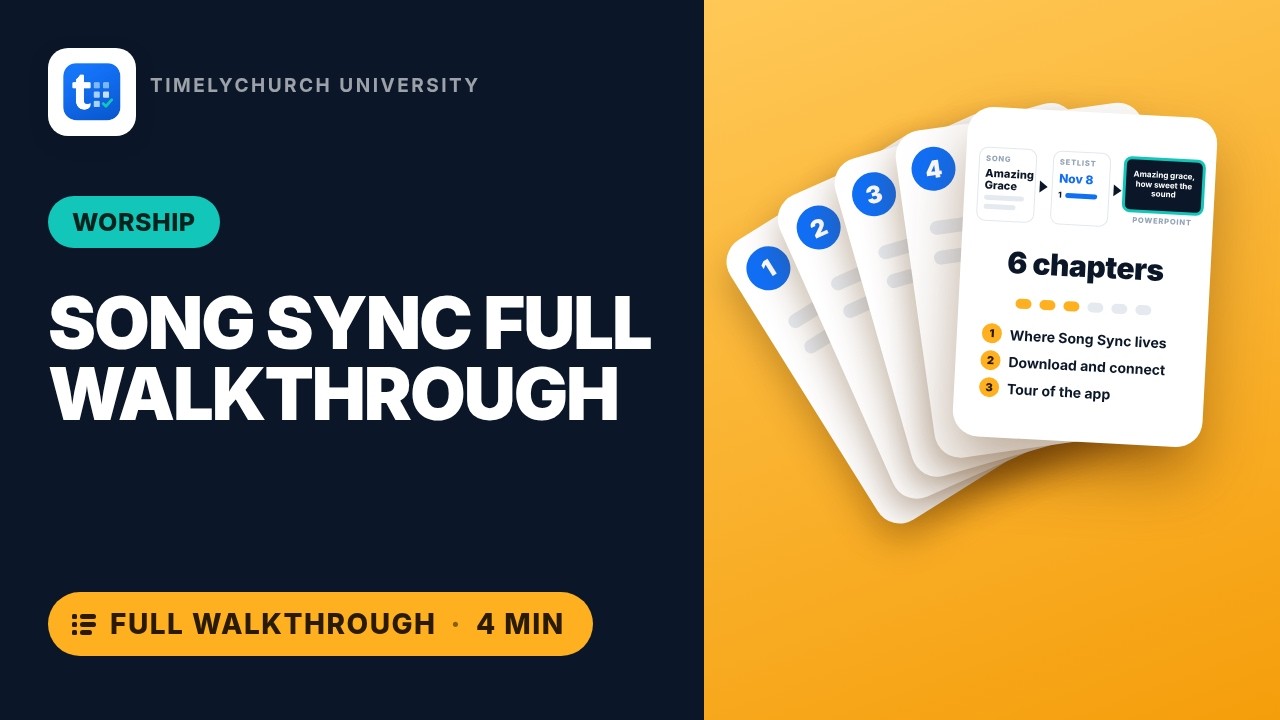
In TimelyChurch the person at home reviews and publishes the song in the browser. Song Sync, depending on your plan, is a desktop app on the church media computer. Pair it with the code from the Devices page under Setlists. It then downloads the files for upcoming setlists into a folder named for each service date, and numbers the songs in set order, like 01 - Title.pptx. You choose the format in the app: ProPresenter, PowerPoint, PDF, slide images or plain text.
The app has to be running and able to reach the internet for an update to arrive. It syncs on the schedule you set under Sync automatically, or when you press Sync Now. It also has a setting, Open Song Sync when this computer starts, so it does not depend on someone launching it after a restart. Check that the setting is on, or add launching it to the booth routine.
Song Sync only sends published translations, and it draws the slides with your church's saved style, the one you set with Save as church default in the slide window.
This replaces a file transfer. It does not open ProPresenter, import a presentation or update a copy the operator already has loaded.
This video walks through how Song Sync puts your setlist slides on the presentation computer.
Keep delivered files and booth work apart
Treat a synced date folder as a delivery location. When the set changes, Song Sync deletes that folder and writes it again. If the operator adds local graphics, cues or other work, that presentation needs to live somewhere else.
For a late correction, compare the new export with the booth's working version and update it on purpose, so the lyric fix lands without wiping out local work.
For example, the operator may have added a service-specific background or a livestream cue. Replacing the whole working presentation with a fresh lyric export could lose both. Tell them the actual change, "verse two, last line," so they can decide how to bring it into the checked presentation.
The same holds with any manual delivery. Receiving a file is one step, and accepting a presentation as ready to run is another.
Check the destination computer
Before the service, the operator should:
- Confirm the service date and song order.
- Open or import the intended files.
- Look at long lines, translations, repeats and endings.
- Check the real audience screen.
- Confirm someone can open a backup without calling the person at home.
A preview at home helps, but fonts, presentation settings and screen setup still need a check on the destination computer.
Try this handoff with one service before you change your whole library. Keep the delivery method that suits your team, and decide that "received" means the operator checked the presentation and not just that the upload finished.
If preparing at home already works and only the transfer is a weekly chore, try Song Sync with your booth volunteer for one service and agree on what their "ready" message means.