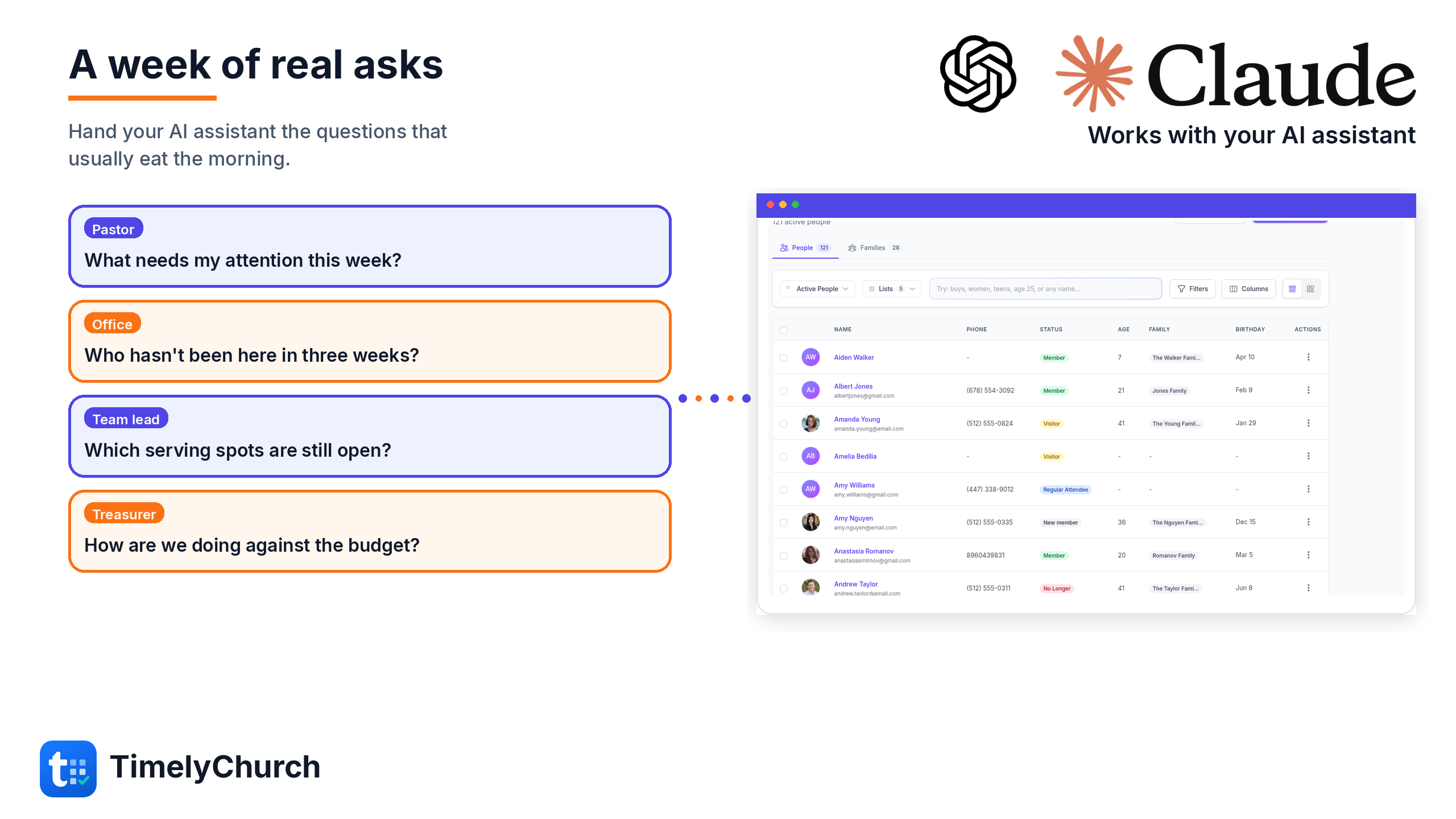
Once your church connects an AI assistant like ChatGPT or Claude to TimelyChurch, the next question is what to ask it. A blank chat box can feel like a blank page. Here are requests that save real time, grouped by who usually asks them, with a note on what happens behind each one.
It works through MCP, an open standard that connects AI assistants to the software you use. It's what lets your favorite assistant look things up in TimelyChurch and make changes there, with your permissions.
Everything below assumes your church has turned on the connector under Church Settings > Integrations > MCP Connector. The requests that change something also need Allow AI tools to propose changes. Your assistant only ever sees and does what you could see and do when signed in yourself.
For the pastor
"What needs my attention this week?" The assistant reads the same Notifications page you see in TimelyChurch: new visitors, prayer requests, follow-ups that are due. It gives you the counts with the top few items in each, so you can decide where to start.
"Who visited for the first time this month, and has anyone followed up with them?" You get the list of first-time guests, how many times each has been back, and whether a follow-up has been assigned.
"Give me the Church Health numbers for this month." Active people, new people, attendance and check-ins, plus giving and group activity if you're allowed to see them. It's the Church Health page read back to you, so you can ask follow-up questions about it.
For the church office
"Create a Christmas Eve service on December 24 at 6 PM, book the sanctuary, and add a task to set up chairs on the 23rd." That's three changes, made one after another. The assistant shows you a preview of each first: the event, then the room booking, then the task. Approve each one and they appear in TimelyChurch as if you'd made them yourself.
"Who hasn't been here in three weeks? Add a follow-up for each of them, due Friday." It finds the people with no attendance or check-in in that time, then proposes one follow-up per person. You see the full list before you approve, so you can say "leave out the Bennetts, they're traveling" and get a new preview.
"Which forms got new answers since Monday?" Handy after a sign-up goes out, when you want to know who responded without opening each form.
For team leaders
"Which serving spots are still open for Sunday, and who on the welcome team is free that day?" The assistant checks the open positions and your team's availability, including dates people have blocked out, and suggests who could fill each gap.
"Put Angela on the welcome team for Sunday, and remind the two people who haven't confirmed yet." After you approve, Angela gets the same message she'd get if you assigned her by hand, by email or Telegram. The reminders go out the same way.
"Add It Is Well with My Soul to Sunday's setlist, after the second song." The song goes in, the order updates, and your band sees it in the setlist right away.
For the treasurer
"Which bank rows still need a category? Put the electric company under Utilities." The assistant lists what's waiting in the bank import, then proposes the categories. You review the rows before anything moves.
"How are we doing against the budget this year?" You get budget against actual for each line, and the assistant points out the expense lines that have already reached 90 percent of their plan.
"Complete the October reconciliation." This one can't be undone, so it waits on Pending approvals in TimelyChurch until an administrator approves it. If you're the one who asked, another administrator has to approve it. Then you confirm in the chat and it's done.
For members
If your church lets everyone connect, members can use their own assistant for their own things.
"When am I serving next?" Their upcoming schedule, without opening the app.
"I'm away December 20 to January 3. Block those dates." The dates are blocked on every serving team they belong to, so nobody schedules them by mistake.
"Add a prayer request for my mom's surgery on Thursday." The request goes in under their name, as if they'd typed it in the portal. The church's AI activity list shows "A member" for prayer actions rather than who it was.
A few tips
Start by asking for a summary, then drill into the part you care about. "How many people missed the last two weeks?" is a better opener than "list everyone who missed".
Name the date or the range. "This Sunday" works, but "Sunday the 30th" leaves no room for doubt.
Check your assistant's training setting before you start. Assistants like ChatGPT or Claude let you choose whether your conversations may be used to train their models. If you'd rather your church's information not be used that way, turn that setting off.
Read the preview before you approve, every time. It tells you exactly who and what will change, and you can always say "no" or ask for a different version first.
If your church is new to this, turn on reading first and leave changes off for a week or two. Once your team trusts the answers, switch on Allow AI tools to propose changes.
What the assistant can reach in each area depends on your plan (see Pricing). The help article Connect an AI assistant covers the setup.