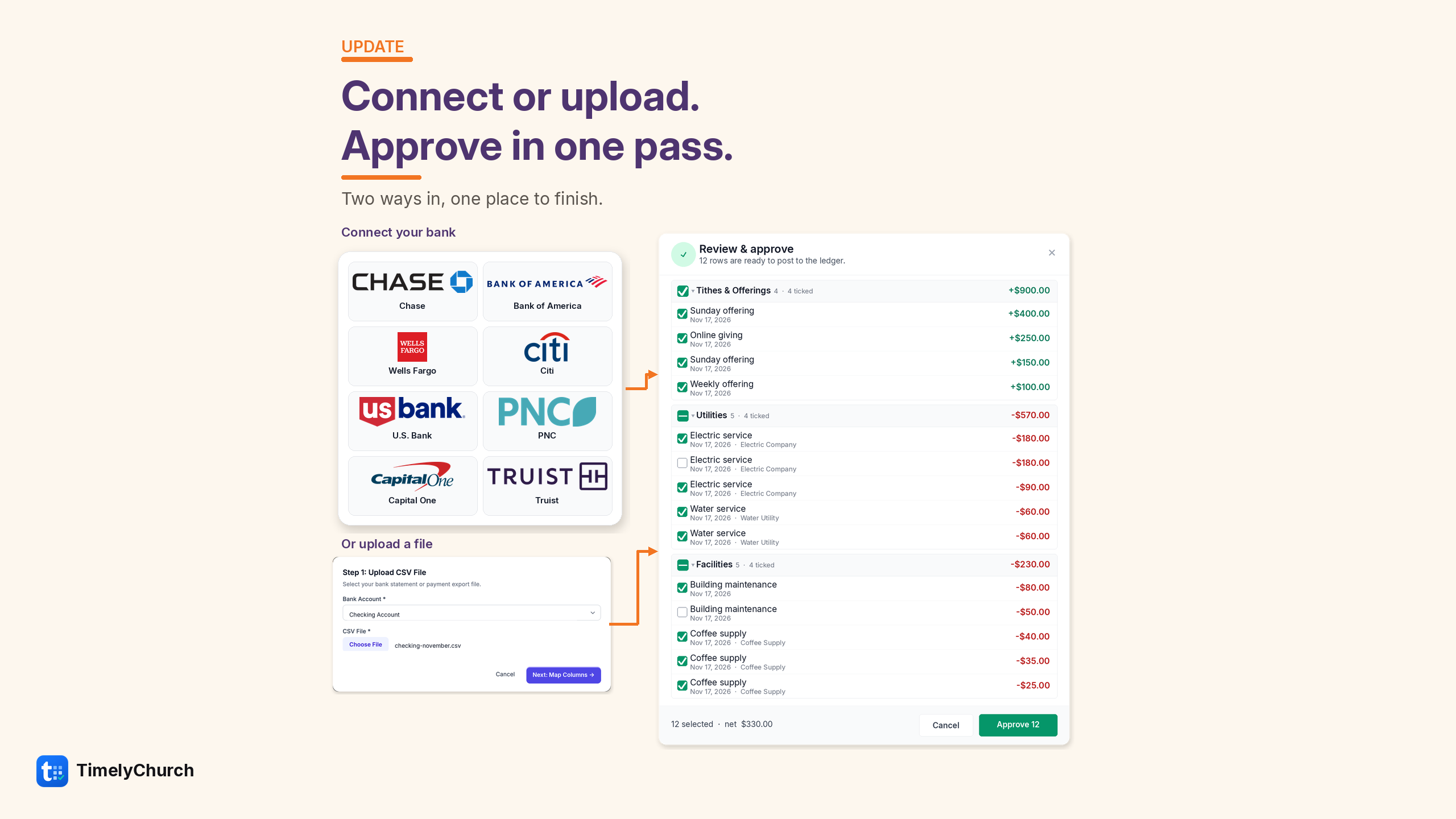
Most church treasurers know the Monday routine. Log in to the bank, download last week's transactions, bring them into the books, then go down the list one line at a time: the offering deposit, the electric bill, the mortgage, the coffee for the youth room. Every line needs a category, and each one gets clicked on its own.
TimelyChurch now cuts that routine down at both ends. The transactions can arrive by themselves, and the treasurer can post most of them together.
Two ways in
Connect the bank. In Accounting, open Setup, then Chart of Accounts, and click Connect bank next to the church's checking or savings account. A secure window opens where you choose your bank, sign in to it and pick the account. Your bank password goes into that window, never into TimelyChurch.
From then on, new transactions come in every day. The account shows Connected, its balance and when it last synced, and Sync now checks right away when you don't want to wait. The first sync goes back to the account's opening date in TimelyChurch, up to six months.
If you were uploading files for that account before, the connection starts the day after the last date in your files, so those days don't come in twice. Disconnect stops the daily sync whenever you like, and the transactions already brought in stay.
Chart of Accounts is part of Full Accounting. If your Accounting dashboard says Simple Mode at the top, open that button and choose Full Accounting. It changes only your own view, and you can switch back.
Bank connection is for churches in the United States, depending on your plan (see Pricing). It is not available during a trial.
Or upload a file. Nothing changes here. On Transactions, open New Transaction, choose Import from CSV and upload the file from your bank's website. Churches outside the United States, and anyone who prefers to download the file themselves, keep working this way.
One pass instead of one row at a time
Whichever way the transactions come in, they wait in the same list. When some are ready, the Transactions page shows a green Review & approve button with a number on it: how many can be posted right now.
Click it and the transactions open grouped by category. TimelyChurch has already checked the ones it is sure about: lines that match a rule you set, descriptions you have posted before, and lines you categorized yourself. A close match stays unchecked, so a person makes that call. Each line shows its date, payee and amount, and says when it will create a donation record or carries a processing fee. A line that can't be posted yet is grayed out, with the reason next to Cannot post yet:.
Uncheck anything you want to come back to. The bottom of the window shows how many lines are selected and their net amount. Click Approve, and the checked lines post to the ledger together. The rest stay in the list for later.
A way back
If you approve a batch and then spot a line that was wrong, you can take it back. After a batch posts, a banner tells you how many lines went to the ledger, and Undo this batch stays on it for 24 hours for anyone with the Delete permission for Accounting.
Who can do what
- Connecting a bank needs permission to edit Accounting.
- Posting with Review & approve needs permission to create entries in Accounting.
- Undoing a batch needs the Delete permission for Accounting.
So the person who connects the bank and the person who approves the week can be different people.