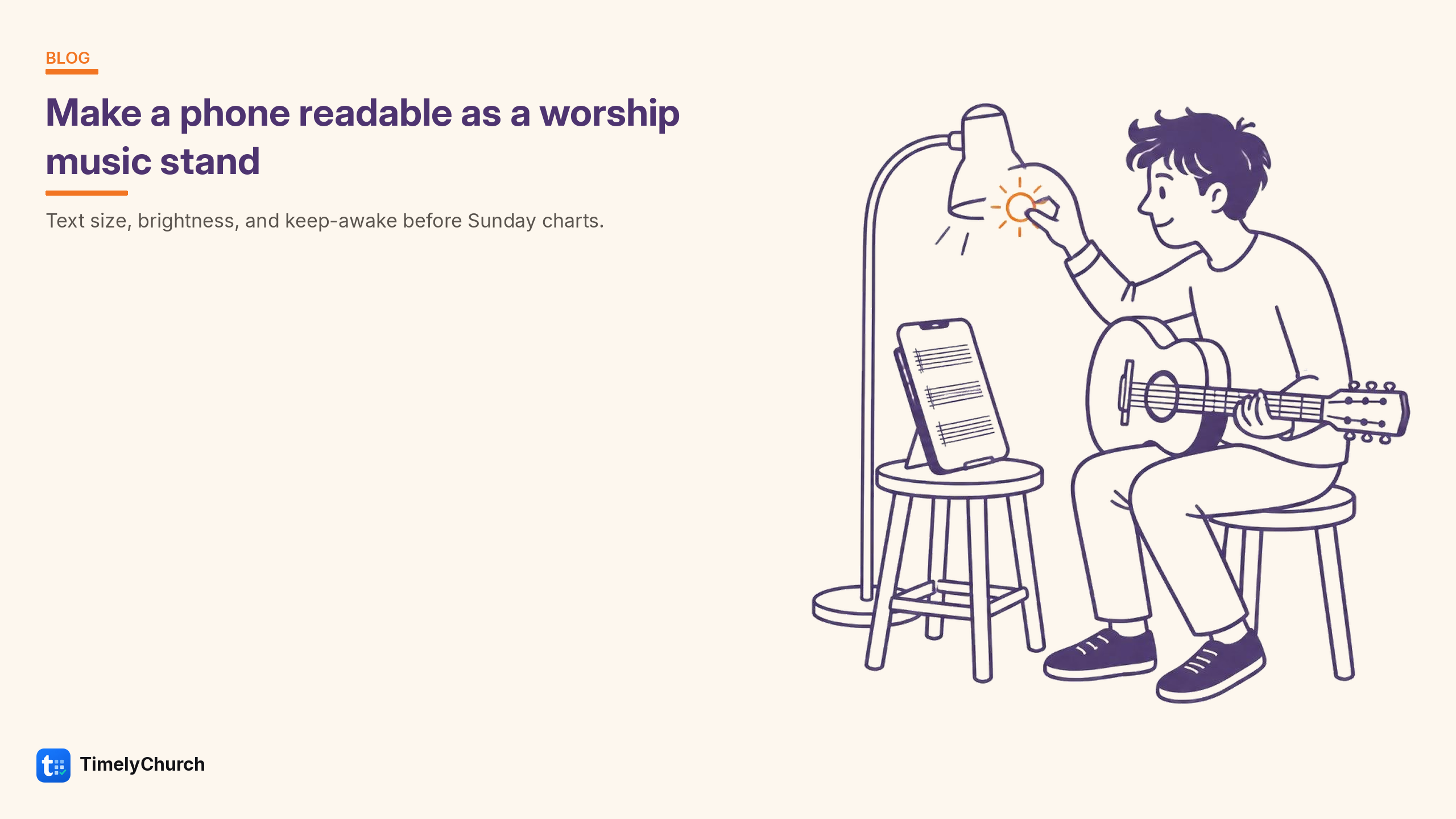
A phone can be a useful music stand when the chart is easy to read and the device stays available. It becomes distracting when the screen locks, notifications cover the words, or the player has to lean forward to find a chord.
Do the first test while playing, not while holding the phone in your hand. The difference in distance can be enough to turn a comfortable chart into a page of tiny symbols. Your reading setup should fit the musician, rather than asking the musician to keep compensating for the device.
Start with reading distance
Mount the phone securely and open the densest song in the set. Adjust text size until the player can read it while holding their instrument normally. Test the entire song, including the ending.
If usable text requires constant scrolling, try a larger screen or paper. A small device is not the right choice for every musician, and the team should not make comfortable reading depend on owning a particular tablet.
This short TimelyChurch University video shows how to set up your chart on the My Stand reader, including a text size that fits how you read.

Check screen behavior on this device
My Stand keeps the screen awake by itself while a set is open, in browsers that allow it. Before Sunday, leave a set open for as long as a rehearsal runs and check that the screen stays on. Browser support, power settings, switching apps, or returning from the background can affect screen behavior; the control is not a guarantee that every phone will stay awake in every condition.
Before service, reopen the correct set and confirm the display is still ready. Use your device’s focus or notification settings as appropriate so an unrelated alert does not cover a chart.
Choose contrast before choosing a theme
My Stand offers light and dark reading themes. Try both under stage lighting and use the one that makes the words easiest to distinguish. Dark mode can be comfortable in a dim room, but reducing brightness too far can make chord details disappear.
Pay attention to chord details as well as lyrics. If a small “m” or a slash bass note is difficult to distinguish, the words may look readable while the musical information is not.
Check glare and viewing angle, too. A small change in stand position may help more than another font-size adjustment. Ask the player to glance at the leader and then find their place again; that is closer to the real job than staring continuously at the screen.
Prepare power and navigation
Charge the device and, if using a cable, secure it so it does not pull the phone off the stand. Test manual scrolling or the pedal you intend to use. Know how to return to the set after accidentally opening another screen.
If the team uses Lead live, verify that your reader is following the intended leader. Following song changes still leaves you responsible for reading and playing your part.
Keep a fallback you can actually reach
Do not assume that an open browser page proves complete offline access. Prepare a printed or deliberately saved backup and test it before relying on it. Include the correct arrangement and sounding key.
A useful pre-service check is short: correct set, readable text, screen behavior tested, power ready, navigation working, backup available. When those basics are settled, the phone can stay in the background while the musician focuses on the song.
You can try My Stand in TimelyChurch and try those reading controls on the device you already have. Use the longest song in an upcoming set, and keep the paper option if it serves you better.