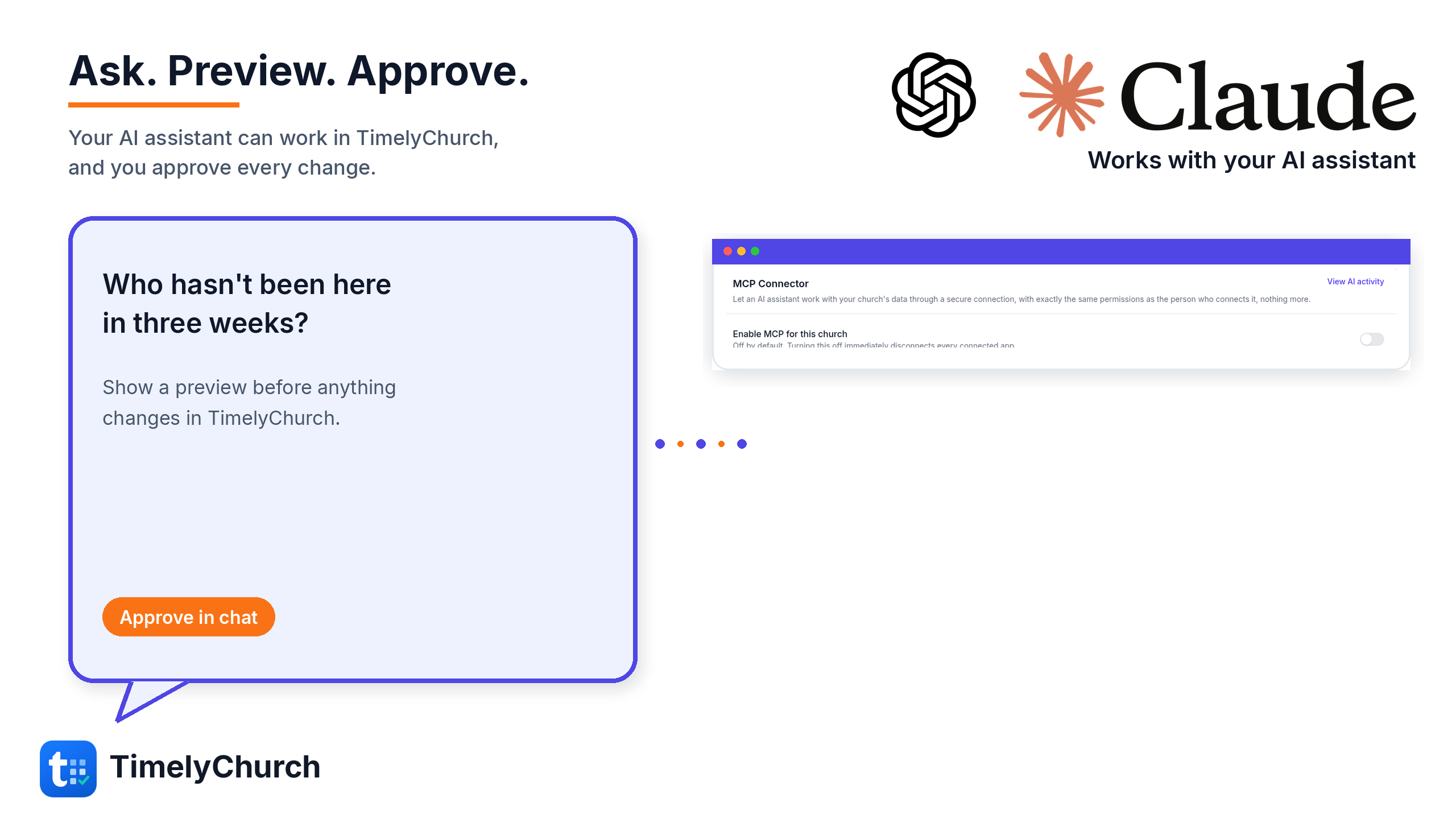
Monday morning in a church office usually starts with questions. Who missed the last three Sundays? Is anyone on the sound desk this week? Did the youth retreat deposit get recorded? Each answer sits on a different screen, and by the time you have all three, half the morning is gone.
If you already use an AI assistant like ChatGPT or Claude for email or sermon research, you can now connect it to TimelyChurch and ask those questions in plain words. It looks up the answers in your church's own data. When you want something done, it can do that as well. By default, it first shows you exactly what will change and waits for your yes.
What MCP is, in plain words
MCP stands for Model Context Protocol. It's an open standard that connects AI assistants to the software you use. Think of the USB port on a computer: one shape, and any device made for it plugs in. MCP does that job between AI assistants and apps.
TimelyChurch supports MCP, so your favorite AI assistant, like ChatGPT or Claude, can work inside your church's account with your permissions. There's no copying lists into a chat window. The assistant asks TimelyChurch for what it needs, and TimelyChurch decides what it may see and do.
If your assistant lets you add a custom connector, it can connect to TimelyChurch.
One connection, the whole church
Once connected, the assistant can look in nearly every part of TimelyChurch: people and families, groups, events and the calendar, serving schedules, songs, setlists and service plans, sermons, lessons, rooms and equipment, check-in, forms, email, announcements, tasks, prayer, giving, accounting and reports.
So you can ask things like:
- "Who hasn't been here in three weeks? Leave out anyone who's already on the follow-up list."
- "Which serving spots are still open for Sunday, and who on the team is free that day?"
- "How is the general fund doing against this year's budget?"
- "Which groups haven't met in the last four weeks?"
It answers from your data, and it sees only what you can see. If you can't open the giving pages when you sign in, your assistant can't read them either.
It can make the changes too
The assistant can make dozens of kinds of changes across people, groups, events, worship, giving and accounting:
- Put a volunteer in an open spot on Sunday's team. They get their invitation after you approve.
- Add follow-ups for the people who've drifted, each with a due date. You approve each one.
- Create an event and book the fellowship hall, then add the setup tasks. You approve each step.
- Add songs to a setlist.
- Sort a month of bank rows into the right categories, record a pledge, or mark a closed deposit batch as deposited.
Every change goes through the same steps as the button you'd click in TimelyChurch. The same permissions, rules and notifications apply, and the change shows up in the app straight away.
By default, you approve each change
When you ask for a change, the assistant prepares it and shows you a preview: which volunteer, which Sunday, which position. Then it waits. With the recommended setting, the change is applied only after you reply "approve" or "go ahead" in the chat. English, Spanish, Portuguese, Russian, German and Lithuanian replies all work. A reply with a question in it doesn't count as a yes, and a preview you never answer expires after 30 minutes.
A few big changes also wait for an administrator on the Pending approvals page. When your church has a second approver, they approve it.
You stay in charge of who connects
The connection is off until an administrator turns it on, under Church Settings > Integrations > MCP Connector. Turning on Enable MCP for this church lets assistants read. Changes need a second switch, Allow AI tools to propose changes.
Under Who may connect you can allow everyone who signs in, or only the roles you check. Church administrators can always connect. Approval in the chat sets when the assistant must ask: before every change (recommended), only before changes that post to the ledger, or not at all. The changes on Pending approvals wait for an administrator whatever you pick. Everyone who can edit settings gets a notice when someone connects.
AI Activity lists every call an assistant makes: who asked, which tool it used, whether it was allowed and when. You can filter it and export it. Revoke cuts off a connection at once, and turning the connector off disconnects everyone. When someone changes or resets their password, every assistant connected as them is disconnected too.
Privacy is built into the answers
The assistant only sees what the person who connected it may see, and some details stay out even then. Donor names stay hidden unless that person is allowed to see who gave. In attendance lists a child appears as a first name and last initial, without contact details, birthdays or custody notes. When a member shares a prayer request through their assistant, the activity list shows "A member" rather than their name.
One reminder before your team connects. AI assistants like ChatGPT or Claude have a setting that decides whether your conversations may be used to train their models. If you'd rather your church's information not be used that way, turn that setting off first, and ask everyone who connects to do the same.
Members can use it too
If your church allows everyone to connect, members can link their own assistant to their own account. They can ask when they serve next, block out the weeks they're away, RSVP to an event, sign up for an open serving spot or add a prayer request, without hunting through menus. A member's assistant can do only what that member can do when signed in, and they can disconnect it from their profile page whenever they like.
Getting started
- An administrator opens Church Settings > Integrations > MCP Connector and turns on Enable MCP for this church. Turn on Allow AI tools to propose changes when you're ready for changes.
- Each person copies the connector address from the card (or from the AI assistant card on My Profile).
- In your AI assistant, such as ChatGPT or Claude, choose to add a custom connector and paste the address. Whether you have that option can depend on your plan with the assistant.
- TimelyChurch asks you to approve the connection and pick the church it may use.
- Ask your first question.
The help article Connect an AI assistant has every step. What the assistant can reach in each area depends on your plan (see Pricing).
Start with read-only for a week. Ask it the questions that usually take you the longest, then turn on changes when you trust what you see.